DNS Resolution and the dig Command
I like making things with code. This is where I share my projects and the bugs I ran into.
What is DNS and Why Name Resolution Exists
If you've read the previous blog on DNS records, you already know what DNS is and how it works behind the scenes. But knowing how something works and actually being able to see it happen in real time are two completely different things.
That's exactly what the dig command lets you do. Instead of just understanding DNS resolution as a concept, you can watch it happen step by step, query each level of the DNS hierarchy yourself, and see exactly what every server responds with. Once you've done that, DNS stops being abstract and starts feeling like something you actually understand.
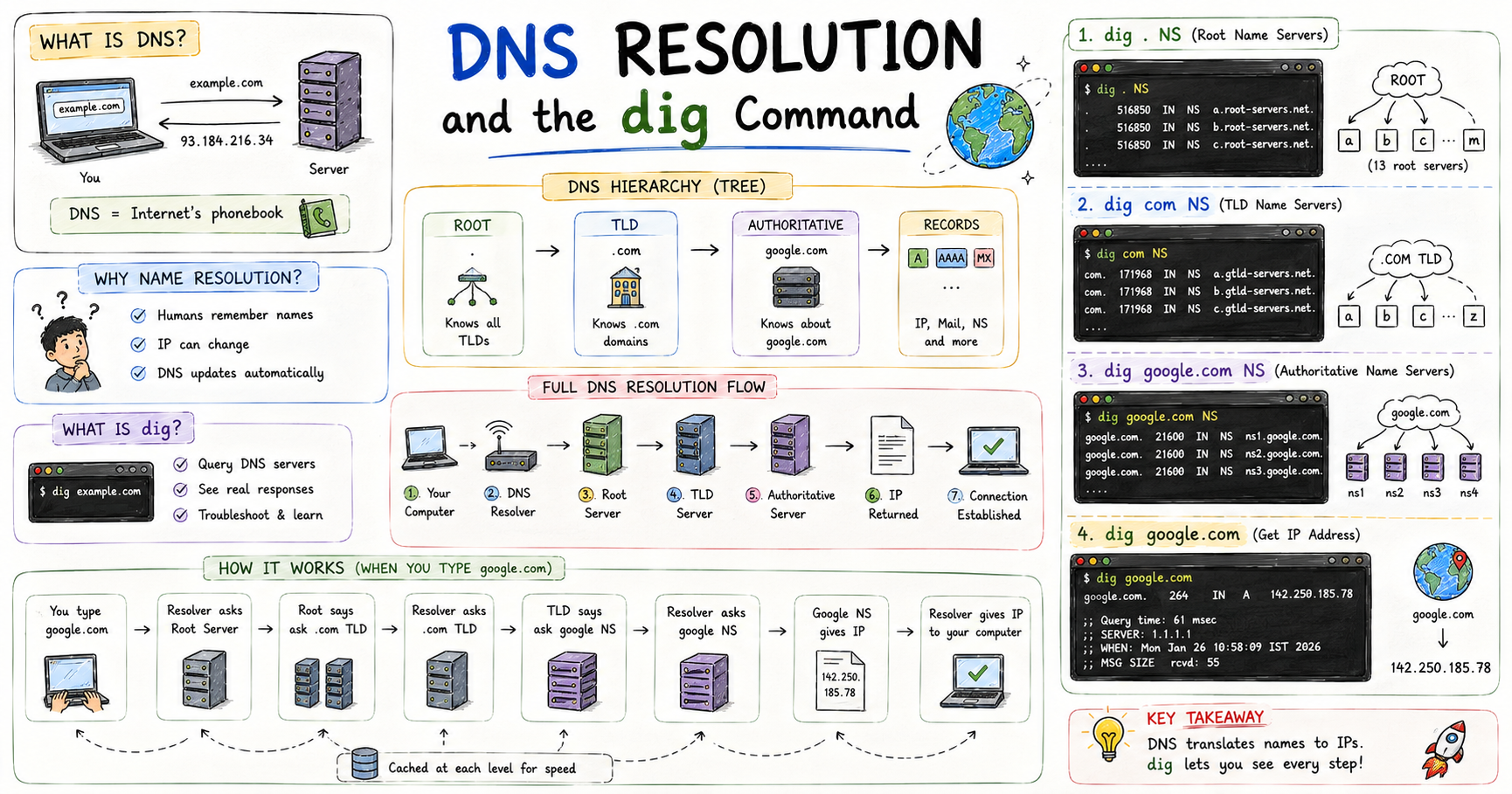
Think of DNS like a telephone directory. Just as it maps a person's name to their phone number and address, DNS maps a website's domain name to its IP address. Without a directory, you'd have to somehow already know the number of every person you wanted to call. The internet works the same way, and DNS is what makes it manageable.
Now, you might be wondering, "When I visit a website, I just type its name and it opens. Why does any of this matter?" That's a totally fair thought, and most people don't think twice about it. But behind the scenes, your machine doesn't actually understand the website name you type. It only understands one thing, and that's IP addresses. The name you type, technically known as a Domain Name, needs to be translated before your machine knows where to go. This translation is exactly what the Domain Name System (DNS) handles.
Here's a question worth thinking about. If your machine needs an IP address anyway, why not just type it directly? The answer is simple. Think about how many websites you visit in a month. Remembering a unique IP address for each one simply isn't realistic. And even if you managed to memorize a handful, what happens when a website switches to a new IP address due to some technical issue? You'd have to start over, and that cycle would never end.
DNS exists to solve this exact problem. It stores the IP address for every domain and updates it automatically whenever anything changes, so you never have to think about it. This entire process of converting a human-friendly domain name into a machine readable IP address is what we call Name Resolution, and it happens every single time you browse the internet.
What is the dig Command and When It Is Used
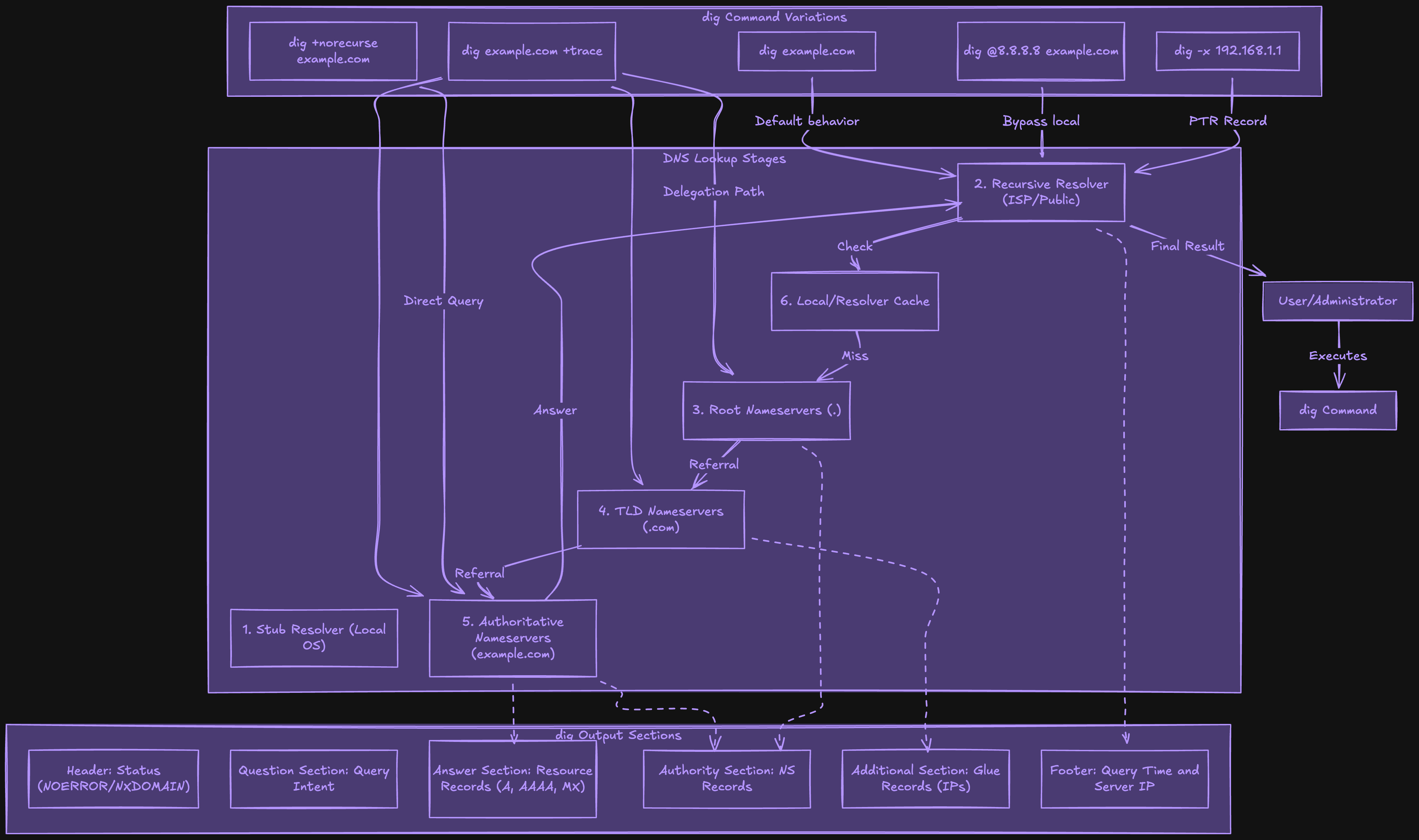
dig (Domain Information Groper) is a command line tool that developers use very frequently because it lets you query DNS servers and see exactly what's happening during the process of name resolution.
But it's not only used by developers. It's also used by network administrators and anyone who needs to troubleshoot DNS issues or understand how DNS works. And its syntax is:
dig example.com
You use dig when you want to find out what DNS records exist for a domain, troubleshoot why a website isn't loading properly, verify DNS changes you've made, or learn how DNS works.
Understanding dig . NS and Root Name Servers
The DNS system is hierarchical, like a tree. At the very top of it there are the root name servers.
Command:
dig . NS
Here, dot (.) represents the root of the entire DNS system. This command asks "who are the root name servers?"
Output:
. 516850 IN NS a.root-servers.net.
. 516850 IN NS b.root-servers.net.
. 516850 IN NS c.root-servers.net.
. 516850 IN NS d.root-servers.net.
. 516850 IN NS e.root-servers.net.
. 516850 IN NS f.root-servers.net.
.....
There are 13 root server systems (a through m) that know about all top level domains like .com, .org, .net, .uk, etc. They don't know about specific websites, but they know who to ask about each top level domain.
Understanding dig com NS and TLD Name Servers
Here, TLD stands for Top Level Domain. These are the .com, .org, .net, .uk parts of domain names.
Command:
dig com NS
This asks "who are the authoritative name servers for the .com domain?"
Output:
com. 171968 IN NS a.gtld-servers.net.
com. 171968 IN NS b.gtld-servers.net.
com. 171968 IN NS c.gtld-servers.net.
com. 171968 IN NS d.gtld-servers.net.
com. 171968 IN NS e.gtld-servers.net.
com. 171968 IN NS f.gtld-servers.net.
......
These TLD name servers know about all the domains registered under .com like google.com, facebook.com, etc. But they don't know the IP addresses, rather they know which name servers are authoritative for each domain.
Understanding dig google.com NS and Authoritative Name Servers
Command:
dig google.com NS
Output:
google.com. 21600 IN NS ns1.google.com.
google.com. 21600 IN NS ns2.google.com.
google.com. 21600 IN NS ns3.google.com.
google.com. 21600 IN NS ns4.google.com.
These are Google's own name servers. They have the actual, authoritative information about google.com and all about its subdomains.
Understanding dig google.com and the Full DNS Resolution Flow
Command:
dig google.com
This performs a complete DNS resolution to find the IP address of google.com.
Output:
google.com. 264 IN A 142.251.43.110

;; Query time: 61 msec
;; SERVER: 1.1.1.1
;; WHEN: Mon Jan 26 10:58:09 IST 2026
;; MSG SIZE rcvd: 55
What Happened Behind the Scenes
Your computer asks its configured DNS resolver (usually your ISP's or a public DNS like 8.8.8.8)
The resolver asks a root name server: "Where can I find .com?"
Root server responds: "Ask the .com TLD servers (a.gtld-servers.net, etc.)"
Resolver asks TLD server: "Where can I find google.com?"
TLD server responds: "Ask Google's name servers (ns1.google.com, etc.)"
Resolver asks Google's name server: "What's the IP for google.com?"
Google's name server responds: "142.250.185.78"
Resolver caches this answer and gives it to your computer
Your computer connects to 142.250.185.78
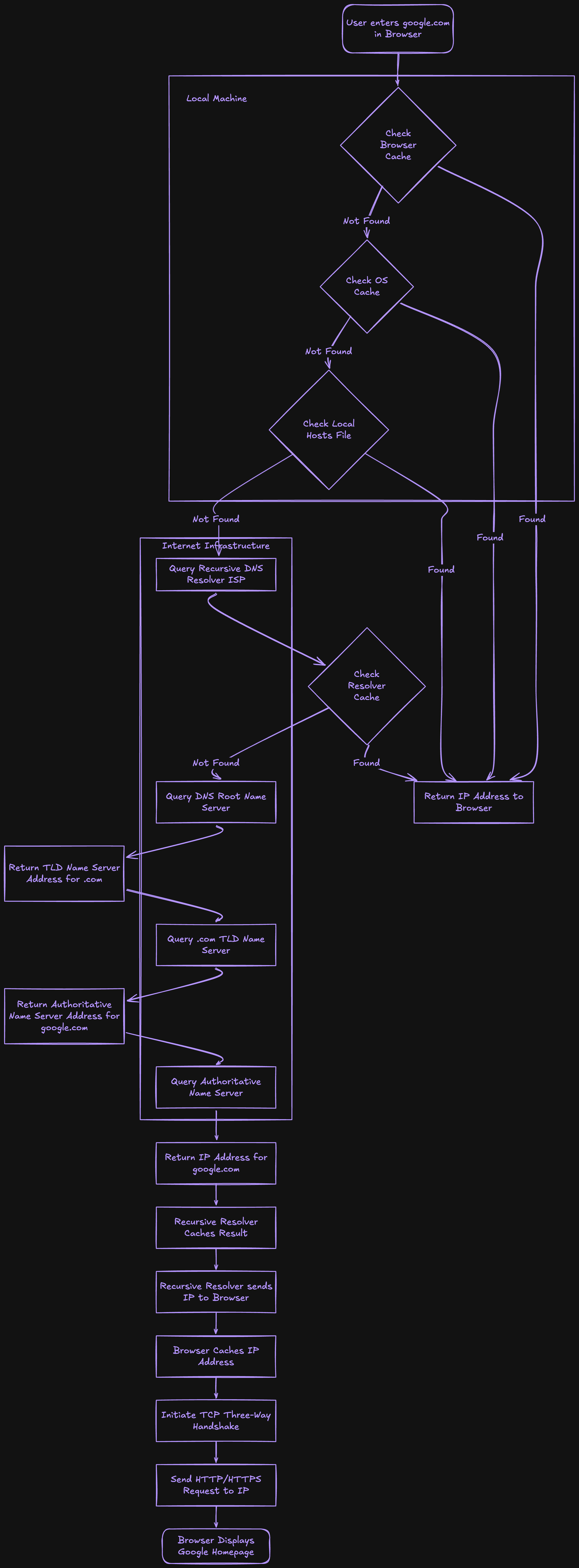
Here's a visual flowchart of exactly what happens step by step when you type google.com and hit enter:
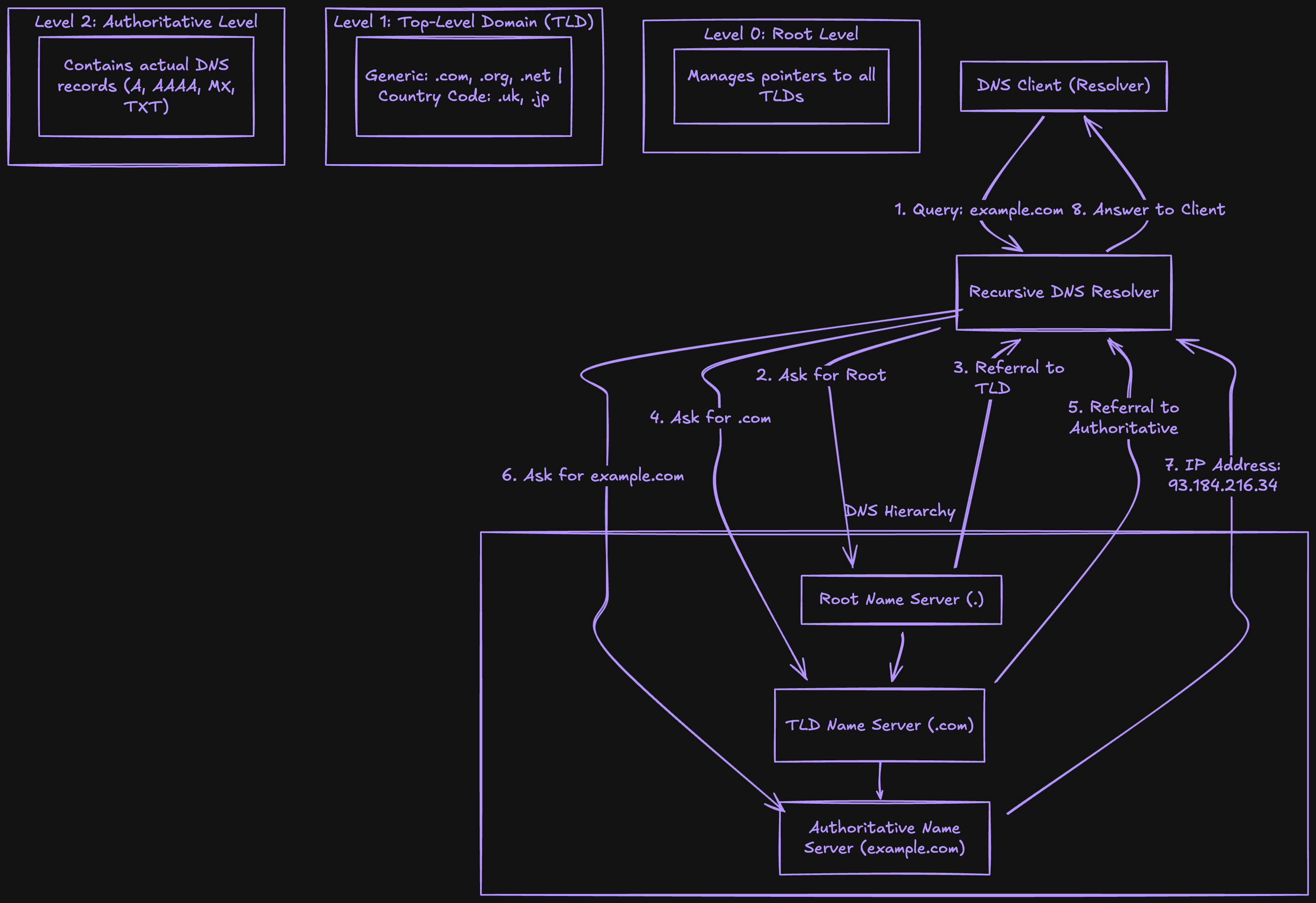
And here's how the overall DNS hierarchy fits together, showing how each level connects to the next:
This entire process usually takes milliseconds because of caching at each level.
Now you have the complete picture of how DNS resolution works. What feels like an instant process every time you type a website name is actually a carefully coordinated conversation happening between multiple servers in milliseconds, and now you can see exactly what that conversation looks like.
The dig command is what gives you a window into that conversation. Whether you're troubleshooting a DNS issue, verifying changes you've made to a domain, or simply trying to understand how DNS works at a deeper level, dig is one of the most useful tools you can have in your toolkit.
The next time a website isn't loading or you want to understand exactly what's happening with your DNS, you know exactly which dig command to run and what to look for in the output. And that's one of the best feelings, going from being completely confused about why something isn't working to knowing exactly where the problem is and how to fix it.


