HTML Tags and Elements
I like making things with code. This is where I share my projects and the bugs I ran into.
Right clicking on a webpage and hitting "View Page Source" is something you do once out of curiosity and it completely changes how you see the internet.
I did it for the first time in class 8th. I don't remember which website it was, but I remember what opened: a wall of text, angle brackets everywhere, <div>, <p>, <nav>, words I didn't recognise arranged in some kind of structure that meant absolutely nothing to me yet. I scrolled through it for a few minutes, completely lost, then closed the tab and went back to what I was doing. But the image stayed with me.
Every website I visited after that, I knew there was something underneath it I couldn't read. I kept thinking about what all those angle brackets actually were. That curiosity is what eventually pushed me to sit down and learn HTML properly. And once I did, I understood exactly why that source code looked so overwhelming at first, and why it doesn't anymore. That's what this blog is about.
What Is HTML?
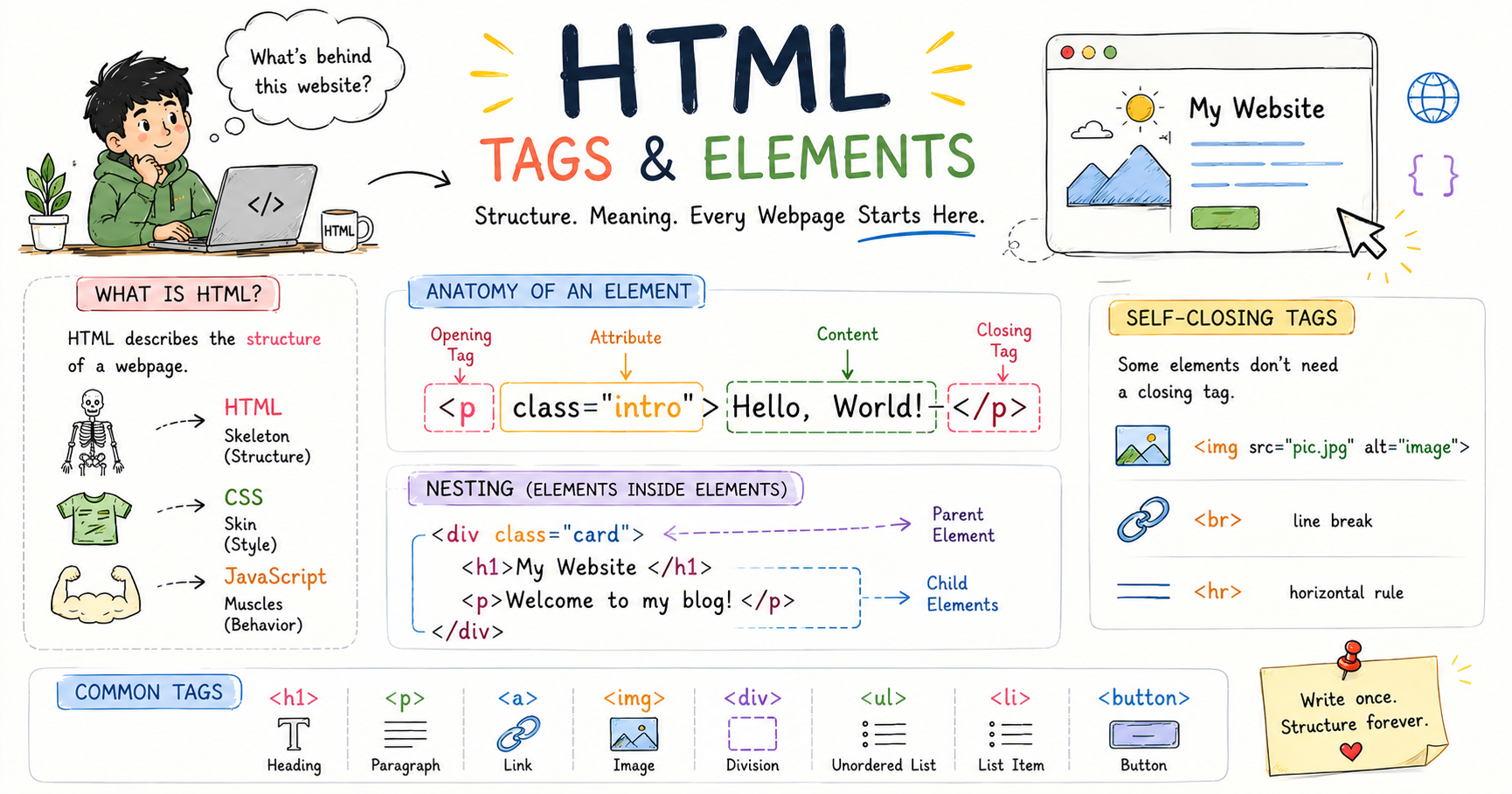
The first thing I got wrong about HTML was assuming it was a programming language. It isn't. It's not like JavaScript or Python. There is no logic in it, no conditions, no loops, nothing that calculates or makes decisions. What it does is much simpler than that, and honestly more useful as a starting point: it describes things.
This is a heading. This is a paragraph. This is a link. This is an image. That is the entire job of HTML. It tells the browser what each piece of content actually is, and the browser handles the rest. The name stands for HyperText Markup Language: HyperText means text that can link to other text, Markup means annotations you add to content to give it meaning and structure, Language means it is a defined system with rules.
The way I find most useful to think about it is a body analogy. A webpage is like a human body. HTML is the skeleton, giving everything structure and holding it in place. CSS is the skin and clothing, controlling how the page looks. JavaScript is the muscles, making things move and respond. You're starting with the skeleton here. Once the structure makes sense, everything that comes after it gets easier to understand because you already know what you're working with.
HTML is the foundation of every single webpage on the internet. Not most of them. All of them. Before any styling, before any animations, before anything interactive, HTML is underneath holding everything together. That View Page Source I stumbled on in class 8th was HTML.
What Is an HTML Tag?
When I first encountered tags I thought they were some kind of code instruction like you'd see in programming. They're not. A tag is simply a label. It tells the browser what kind of content it's dealing with.
Tags are written with angle brackets, the < and > symbols, with the label name in between.
<tagname>
So for example:
<p>
<h1>
<div>
<img>
The angle brackets are how you say to the browser: this is a special instruction, not regular text. Everything outside angle brackets is content that gets displayed. Everything inside angle brackets is a tag that tells the browser what that content is.
A good way to picture this is gift wrapping. The opening tag is you starting to wrap the gift. The content is the gift itself. The closing tag is you finishing the wrapping. Most tags work in pairs, and that pairing is where HTML starts to make real sense.
Opening Tags, Closing Tags, and Content
The thing that confused me most in those first few days wasn't the tags themselves. It was the closing tags. I'd write <p>and then keep typing, and nothing broke, so I assumed I was doing it right. Then I'd open my page in a browser and the layout would look completely wrong and I had no idea why. It took me embarrassingly long to understand that the browser wasn't just reading my opening tags. It was waiting for me to close them, and when I didn't, it made its own guesses about where the element ended.
Most HTML elements have three parts: an opening tag, the content, and a closing tag. The closing tag is identical to the opening tag except it has a forward slash before the name.
<tagname>Content goes here</tagname>
Here's a paragraph:
<p>This is a paragraph of text.</p>
The <p> opens the paragraph. The text is the content. The </p> closes it. The browser sees everything between those two tags as one paragraph and displays it as a block of text.
A heading works the same way:
<h1>Welcome to My Website</h1>
h1 stands for heading level 1, which is the most important heading. The browser displays this as large, bold text at the top of the section.
You can have multiple elements one after another:
<h1>My Blog</h1>
<p>Welcome to my blog!</p>
<p>Here I write about my adventures.</p>
Each element is completely independent with its own opening tag, its own content, and its own closing tag.
Elements can also contain other elements. This is called nesting, and it's something you'll do constantly:
<div>
  <h1>My Website</h1>
  <p>This is a paragraph inside a div.</p>
</div>
The div is a container that holds both the h1 and the p inside it. Think of it as boxes within boxes. The nesting order is the one thing I kept getting wrong early on: inner elements have to be closed before the outer ones close.
Correct:
<div>
  <p>Hello <strong>world</strong></p>
</div>
Incorrect:
<div>
  <p>Hello <strong>world</p></strong>
</div>
The second version tries to close </p> while <strong> is still open inside it. The browser gets confused and the result is unpredictable. Once I understood this was why my layouts kept breaking in those early days, I never got it wrong again.
What Is an HTML Element?
This confused me for a while when I was starting out. A tag and an element are not the same thing, even though people use the words interchangeably sometimes.
A tag is just the label itself. <p> is a tag. </p> is a tag. An element is the complete package: the opening tag, the content, and the closing tag together.
<p>This is a paragraph.</p>
In that line, <p> and </p> are the tags. The element is the entire thing, both tags and everything in between. Think of it like a sandwich. The two slices of bread are the opening and closing tags. The filling is the content. The whole sandwich is the element. One slice of bread isn't a sandwich. Similarly, <p> alone isn't an element. The whole structure together is.
Understanding this distinction cleared something up for me early on. When I'd read "close your tags" in a tutorial, I now understood exactly what that meant and why it mattered. Every opening tag needs a matching closing tag. Most do. But not all.
Self-Closing Elements
When I was first writing HTML, I instinctively added a closing tag to everything. <img></img>, <br></br>, I thought that was just the rule. Then I looked at actual codebases and saw <img src="photo.jpg"> with nothing after it and assumed whoever wrote it had made a mistake. It wasn't a mistake. Some elements are self-closing by design, and once you understand why, it makes complete sense.
Most elements wrap around content, but some elements don't need any content at all. These are called self-closing elements or void elements.
Think about what an image actually is in HTML. It displays a source file. There's nothing to wrap around, nothing to go between an opening and closing tag. Same with a line break. It creates a new line, there's no content inside that. These elements just don't have content by nature, and that's by design.
The modern HTML5 way to write them is simply without a closing tag:
<img src="photo.jpg">
<br>
<input type="text">
You might also see an older style in some codebases where the slash is included at the end:
<img src="photo.jpg" />
<br />
<input type="text" />
Both work. The slash version comes from an older standard called XHTML. Modern HTML5 doesn't require it but you'll see it around and it's worth recognising. The ones you'll use most often are <img> for images, <br> for line breaks, <hr> for a horizontal line, <input> for form fields, <meta> for document metadata, and <link> for connecting external files like CSS.
Here is what they look like in use:
<p>First line<br>Second line</p>

<img src="cat.jpg" alt="A cute cat">

<p>Above the line</p>
<hr>
<p>Below the line</p>
Self-closing elements all have something in common: the information they need comes from attributes, not from content between tags.
Block-Level vs Inline Elements
This is one of those things that seems like a small detail at first but starts mattering the moment you try to build anything with structure. HTML elements behave differently depending on whether they are block-level or inline.
When I was first building pages and things weren't laying out the way I expected, half the time it came down to not understanding this distinction. An element I expected to sit next to something was appearing below it. Or something I expected to take up just a bit of space was stretching across the whole page. Once I understood block vs inline, those surprises mostly stopped.
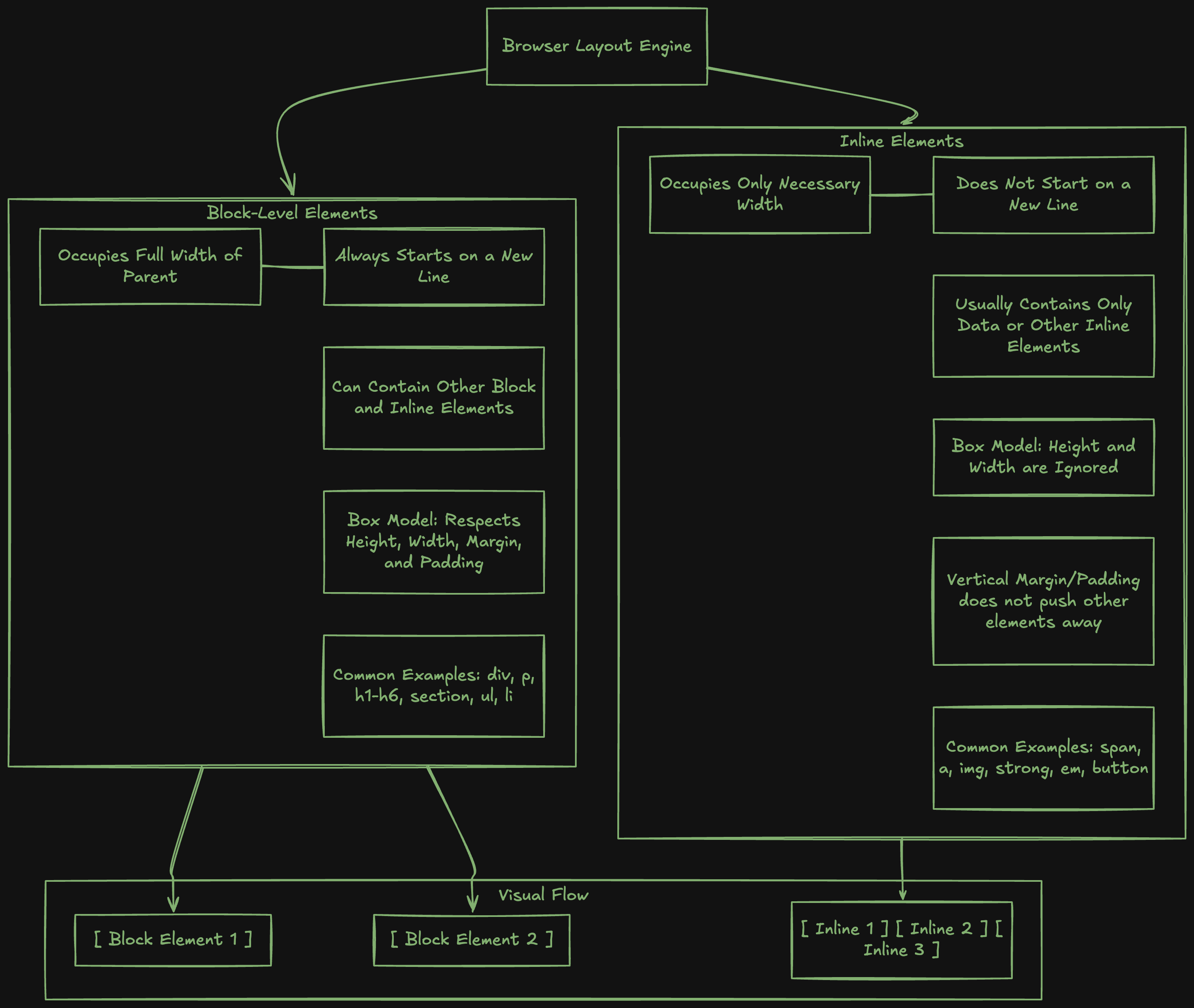
Block-level elements start on a new line and take up the full width available. They stack on top of each other. Think of them as paragraphs in a document, each one a separate row. The most common block-level elements are div, p, h1 through h6, ul, ol, li, section, article, header, footer, nav, main, aside, form, and table.
Inline elements don't start on a new line. They flow within text like words in a sentence, only taking up as much space as their content needs. The most common inline elements are span, a, strong, em, b, i, code, small, img, br, input, and button.
Here's a quick example showing how they behave differently:
<p>This is a paragraph with a <a href="page.html">link</a> and <strong>bold text</strong> inside it.</p>
The p is block-level so it sits on its own row. The a and strong are inline so they flow right inside the paragraph without breaking it into new rows. One thing worth knowing is that you can change this default behaviour with CSS using the display property. But understanding the natural behaviour first means CSS surprises you a lot less.
Commonly Used HTML Tags
When I was first learning, I made the mistake of trying to memorise every tag before writing a single line of HTML. I had a list open in another tab and kept flipping back to it every few seconds. It was exhausting and nothing stuck because I wasn't actually using any of it. The tags that stick are the ones you use constantly, and honestly there are only about a dozen you'll reach for in almost everything you build.
Headings
Headings run from h1 to h6, most important to least. I used to use them based on how big I wanted the text to look, which is the wrong way to think about it. They're about hierarchy, not size. CSS handles size.
<h1>Main Title (Largest)</h1>
<h2>Subheading</h2>
<h3>Sub-subheading</h3>
<h4>Smaller heading</h4>
<h5>Even smaller</h5>
<h6>Smallest heading</h6>
One h1 per page. And I learned the order matters too: skipping levels or picking headings based on their size confused screen readers and search engines that depend on the hierarchy to understand the page.
Paragraphs
The <p> tag is the one I used more than anything else when I was first building pages. It's what you reach for any time you have a block of text:
<p>This is a paragraph. It can contain multiple sentences.</p>
<p>This is another paragraph. Browsers add spacing between them automatically.</p>
Links
Links were one of the first things I actually got excited about when I was learning HTML. The fact that you could make text take someone to an entirely different page felt like real power. They use the <a> anchor tag with the href attribute for the destination:
<a href="https://www.example.com">Click here to visit Example.com</a>
<a href="https://www.example.com" target="_blank">Open in new tab</a>
<a href="#section2">Jump to Section 2 on this page</a>
Images
Images are self-closing and need both a source and alt text:
<img src="photo.jpg" alt="A beautiful sunset">
I skipped the alt attribute constantly when I was starting out because I didn't understand what it was for. It shows as fallback text if the image fails to load, and it's what screen readers use to describe the image to people who can't see it. It also matters for SEO. Once I understood that, skipping it stopped feeling acceptable.
Lists
Lists were something I reached for constantly once I realised how clean they made structured content look. They come in two types: unordered for bullet points and ordered for numbered steps:
<ul>
  <li>First item</li>
  <li>Second item</li>
  <li>Third item</li>
</ul>

<ol>
  <li>First step</li>
  <li>Second step</li>
  <li>Third step</li>
</ol>
Divisions and Spans
I used div constantly before I understood semantic elements, and span I barely touched until I needed to target a specific word or phrase inside a paragraph. The div is a block-level container for grouping sections. The span is its inline equivalent for targeting specific pieces of text:
<div>
  <h2>My Section</h2>
  <p>This is content inside a div.</p>
</div>

<p>This is <span style="color: red;">red text</span> in a paragraph.</p>
Text Formatting
<strong> makes text bold and signals it's semantically important. <em> italicises and signals emphasis. <b> and <i> give you the same visual result without implying any meaning. I used <b> for everything early on without knowing there was a difference:
<p>This is <strong><em>bold and italic</em></strong> text.</p>
Tables
Tables confused me for longer than I'd like to admit because of how many nested tags they require. Once I understood the pattern it clicked, but it took a while. Tables are for structured data with rows and columns:
<table>
  <tr>
    <th>Name</th>
    <th>Age</th>
  </tr>
  <tr>
    <td>Alice</td>
    <td>25</td>
  </tr>
</table>
tr is a table row, th is a header cell, and td is a data cell.
Semantic HTML5 Elements
When I was first learning, I used div for everything. Every section, every header, every footer was just another div with a class on it. It worked visually but it meant nothing to anyone reading the code, and it meant nothing to search engines or screen readers either.
Once I started using them, my code made sense to read in a way it never had when everything was just divs. The SEO and accessibility improvements came along without any extra effort.
<header>
<h1>My Website</h1>
<nav>
<a href="/">Home</a>
<a href="/about">About</a>
</nav>
</header>
<main>
<article>
<h2>Article Title</h2>
<p>Article content...</p>
</article>
</main>
<footer>
<p>© 2026 My Website</p>
</footer>
header is for introductory content at the top. nav is specifically for navigation links. main wraps the primary content of the page. article is for self-contained content that makes sense on its own. section is for thematic groupings of content. aside is for sidebars or supplementary content. footer is for footer content at the bottom. When I read code that uses these properly, I can understand what the page is doing without even opening a browser.
Attributes
For a while I was writing links that looked like <a href>Click here</a> and wondering why they didn't go anywhere. I didn't understand that href wasn't just a switch you turned on. It needed a value. That's when I actually looked up what href stood for and how attributes actually worked. It sounds obvious in hindsight but when you're copying and pasting code you don't fully understand yet, these things slip past you.
Attributes are how you give elements extra information. They always appear inside the opening tag, after the tag name:
<tagname attribute="value">content</tagname>
The attributes you'll use constantly are id for a unique identifier, class for CSS targeting, href for link destinations, src for image and script sources, alt for image descriptions, type for input types, and target for controlling where a link opens.
You can stack multiple attributes on one element:
<img src="cat.jpg" alt="A cat" width="400" height="300" title="My cat">
Some attributes are boolean, meaning their presence alone is enough. You don't need a value:
<input type="checkbox" checked>
<input type="text" disabled>
<video controls autoplay muted>
checked, disabled, controls, autoplay, muted. Just having them in the tag is enough to activate them.
Comments in HTML
I genuinely wish I had used comments more when I was first learning. I'd write a section of HTML, move on, come back a few days later, and have absolutely no idea what half of it was doing or why I'd structured it the way I had. I was building things without leaving any notes for myself, and my own code kept becoming a mystery to me. The habit of commenting changed that almost immediately.
Comments are notes in your code that the browser ignores completely. They're useful for explaining what different sections do, leaving reminders for yourself, or temporarily disabling a section of code without deleting it.
<!-- This is the main navigation -->
<nav>
  <a href="/">Home</a>
  <a href="/about">About</a>
</nav>

<!--
  This section is temporarily disabled
  <section>...</section>
-->
When you come back to your own code after a week away, even code you wrote yourself can look unfamiliar. A short comment that says what something does saves a real amount of confusion.
A Complete HTML Document
For a long time I was creating a new HTML file and manually typing out the whole boilerplate structure every single time. The <!DOCTYPE>, the <html> tag, the <head> with its meta tags, all of it by hand. I didn't know there was a faster way and didn't think to question it. That faster way is Emmet. But even before I knew any shortcuts, seeing everything laid out in one complete file is what made the individual pieces finally click into place as a whole. Here's what that looks like:
<!DOCTYPE html>
<html lang="en">
<head>
<meta charset="UTF-8">
<meta name="viewport" content="width=device-width, initial-scale=1.0">
<title>My Blog</title>
</head>
<body>
<header>
<h1>My Blog</h1>
<nav>
<a href="/">Home</a>
<a href="/about">About</a>
<a href="/contact">Contact</a>
</nav>
</header>
<main>
<article>
<h2>My First Blog Post</h2>
<p>Published on <time>January 26, 2026</time></p>
<p>Welcome to my blog! This is my first post.</p>
<p>I'll be sharing my thoughts on web development.</p>
</article>
</main>
<footer>
<p>© 2026 My Blog. All rights reserved.</p>
</footer>
</body>
</html>
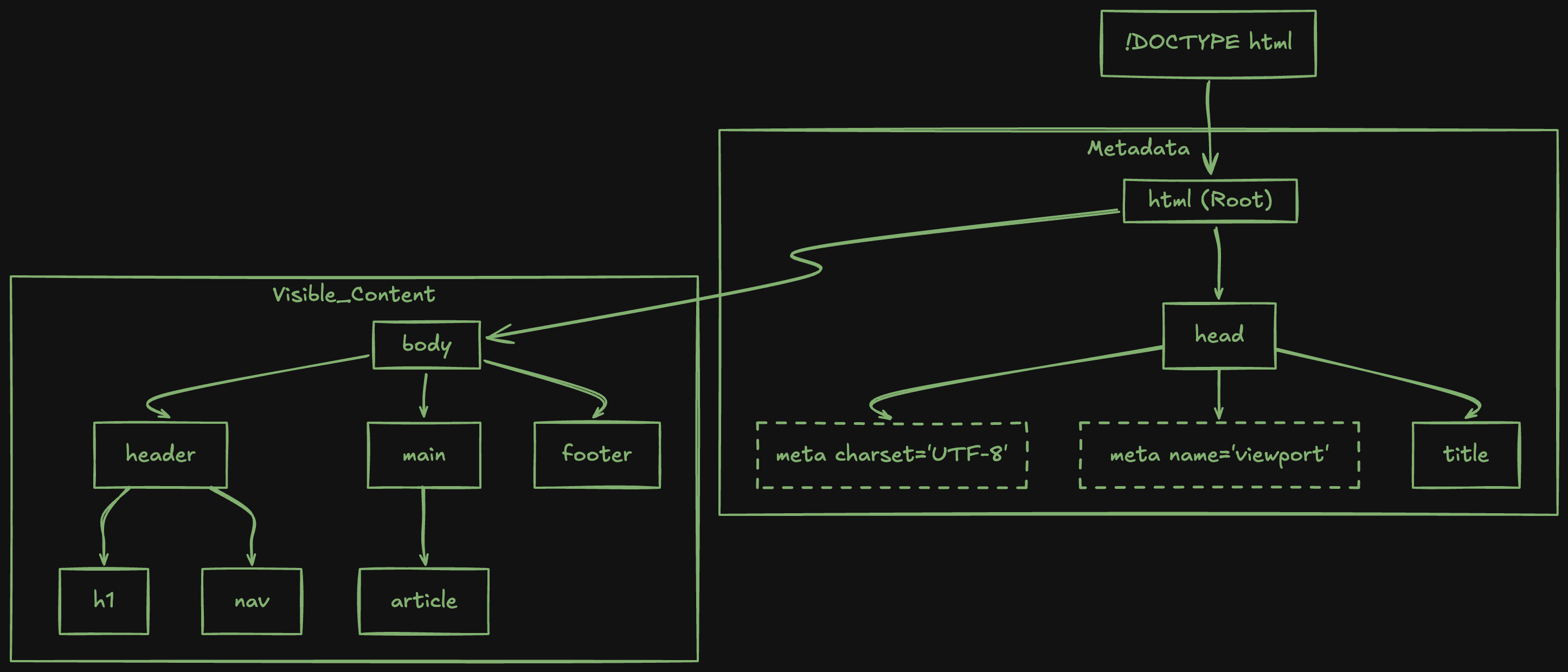
<!DOCTYPE html> tells the browser this is an HTML5 document. The <html> tag is the root and everything else goes inside it. The <head> contains metadata: things like the character encoding, viewport settings for mobile screens, and the page title that appears in the browser tab. None of that is visible on the page. The <body> contains everything that actually gets displayed.
Best Practices and Common Mistakes
Most of the mistakes I made when I was starting out weren't random. They were the same things over and over. Once I understood why each one was a problem, I stopped making them. So rather than just listing rules, let me tell you what I actually kept getting wrong and what finally made each thing click.
The one that bit me the most was forgetting closing tags. I'd write a <div> deep inside some nesting, get distracted, and move on. The browser would try to compensate and the layout would fall apart in ways that made no sense. Now I close every tag the moment I open it, and fill in the content after. Every opening tag needs a matching closing one unless it's self-closing.
The second was nesting order. Inner elements have to be closed before the outer ones close. <div><p>Hello <strong>world</p></strong></div> looks fine to your eyes but the browser sees broken structure. Reading nesting from inside out instead of outside in is what eventually made this click for me.
Lowercase tag names became automatic for me quickly because everything I was reading used them. <DIV> technically works but it looks wrong and nobody writes it that way. I also used to stack div tags for everything until I learned the semantic elements existed. Once I understood that header, nav, main, article, and footer each describe what they actually contain, I never went back to divs-for-everything.
The last things that took me longer to get consistent about were indenting nested elements properly, writing alt text on every image, and quoting all attribute values. None of them feel urgent until you come back to code you wrote a week ago and can't read it, or until an image fails to load and there's nothing showing in its place. The habits that feel tedious early on are the ones that save the most time later.
None of these clicked for me by reading about them. They clicked by making the mistake, seeing the result, and not wanting to make it again.
Wrapping Up
Looking back at that moment in class 8th when I opened View Page Source for the first time, I understand exactly why it looked like gibberish. I was seeing tags, attributes, nesting, all of it at once, with none of the vocabulary to make sense of any of it. Every piece of that page made complete sense to the person who built it. It just made none to me yet. That vocabulary exists now. The same page that looked incomprehensible would make sense if you opened it today.
But there's a difference between reading HTML and being comfortable writing it. Understanding the concepts is the first step, but the second step, the one that actually makes everything stick, is writing a lot of it badly at first. Opening a code editor, making a file called index.html, building a simple page with a heading, a navigation bar, a few paragraphs, an image, and just seeing what happens. Forgetting a closing tag and watching the layout break. Nesting something in the wrong order and hunting down where the problem is. That process teaches you things that no amount of reading can.
There's also something that happens once you have a working mental model of HTML: everything that comes after it gets easier. Writing it by hand gets old fast, and once it did for me, I wanted a way to stop retyping the same boilerplate over and over. That's exactly what Emmet is for. But even beyond that, CSS makes sense because you already understand the elements you're styling. Attributes stop being mysterious because you've typed href and src and alt enough times that they're just part of how you think.
The other thing that changes is how you see the internet. Every page you visit after this, you know there's a skeleton underneath it. You can open View Page Source and read it. What looked like a wall of noise in class 8th is just structure you understand now. That shift doesn't go away.


